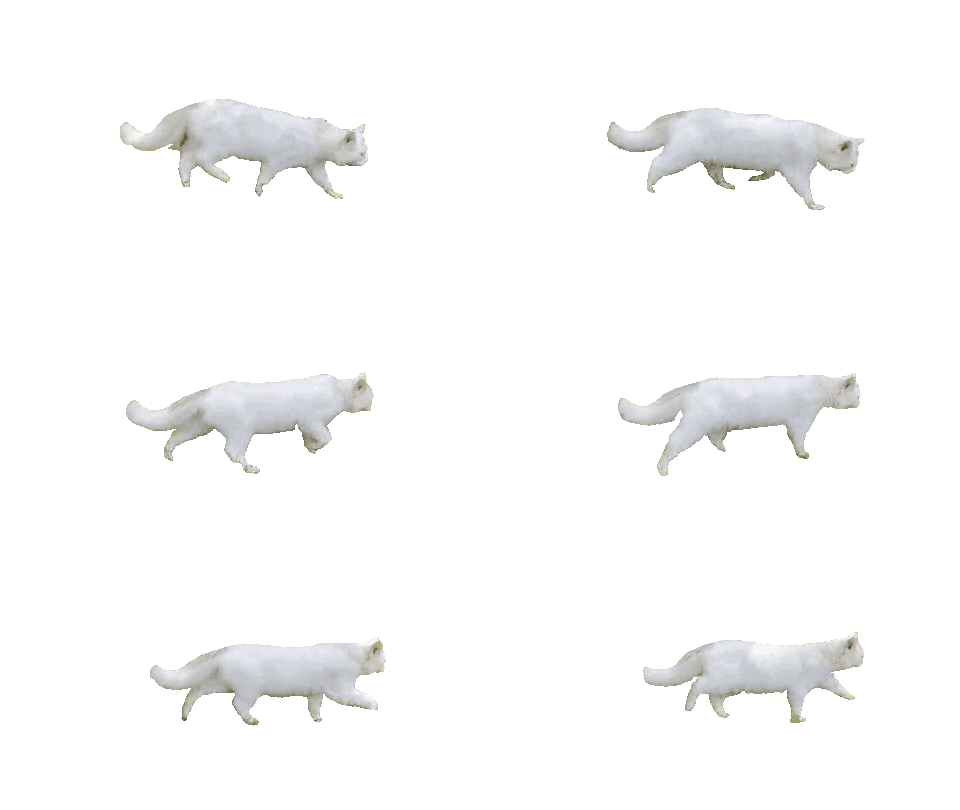
This page removes the background from an animated GIF: every frame is cut out, the animation timing is kept, and you download a GIF with either a transparent background or a solid colour of your choice.
Step by step
- Add the GIF. Click the box above or drag a file onto it. Only GIF files are accepted here. For a JPG, PNG or WebP still, use the image editor instead.
- Let the frames process. The counter shows which frame is being worked on. On a recent laptop each frame takes about two seconds; a 30-frame GIF is done in roughly a minute. The first time you use the tool it also downloads the model, about 200 MB, which your browser keeps for next time.
- Check the preview. The result plays next to the original, over a checkerboard so you can see which parts are transparent.
- Adjust if needed. The background, edge and cut-off controls apply to the frames that have already been cut out, so there is no waiting while you try settings.
- Download. The file is named after your original with
-transparentadded.
Choosing between transparent and a solid colour
Transparent is the right choice when you do not know what the GIF will be shown on, or when it will be shown on several different backgrounds — a sticker, a reaction GIF, an overlay for a video.
A solid colour is the better choice whenever you know the destination. GIF cannot store partial transparency, so a transparent GIF has a hard outline that can show a light or dark fringe against the page. When you pick a colour, the soft edge of the subject is blended into that colour before the GIF is written, which looks smoother than any transparent GIF can. Green is there for chroma keying in a video editor.
Getting good results on difficult GIFs
Low contrast between subject and background. If the subject is a similar colour to what is behind it, the model may cut into it or leave patches of background. There is not much the settings can do here; a GIF with clearer separation will always cut out better.
Several subjects. The model looks for the main subject. In a scene with several people or objects it usually keeps the ones in front and in focus. If it keeps the wrong one, crop the GIF to the subject you want first.
Cartoons and flat colour. Simple, flat-colour animation usually cuts out cleanly, often more cleanly than photographic GIFs, because the edges are already hard.
Heavy dithering. Many GIFs simulate extra colours with a dotted pattern. The model copes with it, but the edge can look slightly rough. The Edge slider, moved a little to the right, tidies it.
Flicker. The model processes one frame at a time, so the outline of fine detail can move slightly between frames. Sharpening the edge usually removes most of it.
Where the GIF is processed
The model runs inside your browser, on your own graphics chip. Your GIF is not uploaded, nothing is stored, and that is also why there is no limit on how many GIFs you can do. It needs WebGPU, which recent Chrome and Edge on a computer have.
On a device without WebGPU, processing in the browser would take close to a minute per frame. Instead the page explains this and offers to process the GIF on our server. Nothing is uploaded until you press the button. If you do, the GIF is sent to our processing provider only to remove the background and is deleted within an hour. Because each server-processed GIF costs us money, that route is limited to three GIFs a day and 10 MB per file.
Limits
- 60 frames per GIF. Each frame is a separate model run. Trim longer animations or drop every other frame before you start.
- GIF only. Stills go through the image editor.
- One animation at a time. Batch processing is available for still images in the image editor, not for GIFs.
Related
If you want to know more about how GIF transparency works and how to avoid halos on dark and light pages, see the transparent GIF maker guide.