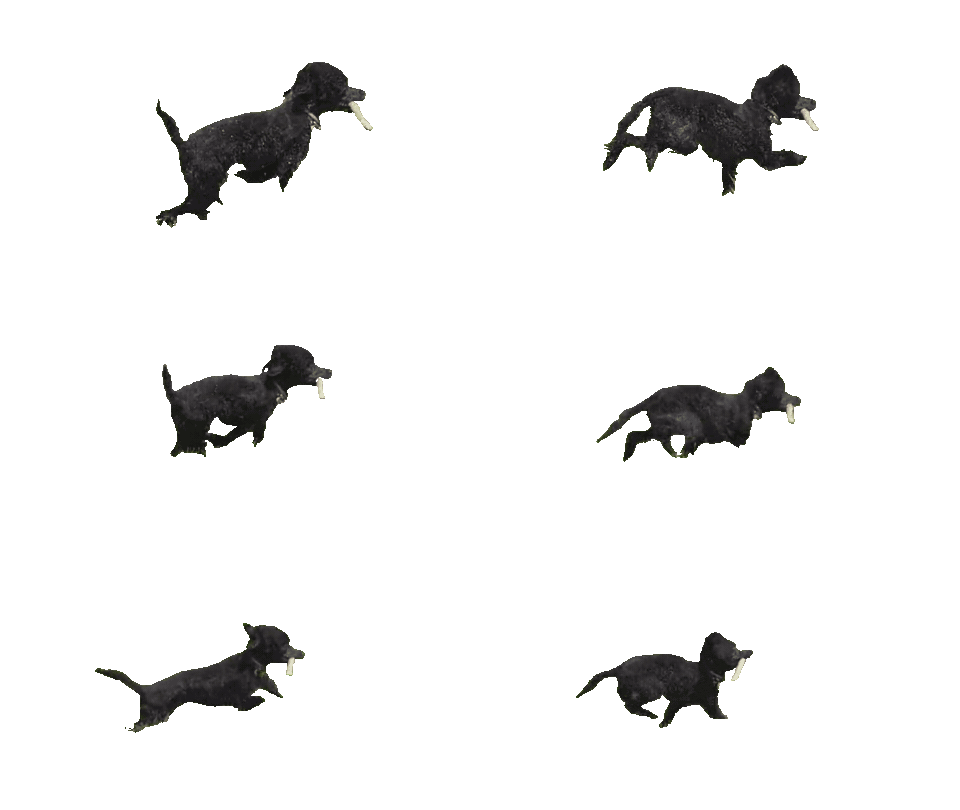
Drop an animated GIF into the box above and you get the same animation back with the background gone — every frame, at the original size and timing. You can leave the background transparent or replace it with a solid colour, and download the result as a GIF.
How to remove the background from a GIF
- Choose a GIF or drag one onto the box. The tool reads every frame of the animation, including frames that only redraw part of the picture.
- Wait while each frame is processed. A progress bar counts the frames. The very first time, the model downloads first; that only happens once.
- Pick a background. Transparent is the default. A solid colour — white, black, green for chroma keying, or any colour you choose — is also one click away.
- Download the GIF. The file keeps the frame delays of the original and loops continuously.
Changing the background or the edge settings afterwards does not re-run the model. The cut-out of each frame is kept, so adjustments only re-encode the GIF and show up almost immediately.
What the result looks like
The model finds the main subject in each frame — a person, an animal, a character, a product, a logo — and everything else becomes background. It works on photographic GIFs, screen recordings and cartoon or flat-colour animation alike, though how well it does depends on how clearly the subject stands apart from what is behind it.
Two things are worth knowing before you start.
GIF transparency is all or nothing. A PNG can make a pixel half see-through, which is how soft hair and motion blur blend into whatever is behind them. A GIF cannot: each pixel is either fully drawn or not drawn at all. The tool therefore has to decide where the edge of the subject is. The Transparency cut-off slider moves that decision. Raise it to trim more of the soft fringe, lower it to keep more of it. If the GIF is going onto a known background colour, choosing that colour instead of transparency avoids the problem entirely, because the soft edge is blended into the colour before the GIF is written.
Each frame is processed on its own. The model looks at one frame at a time, so on fine detail such as stray hairs the edge can shift slightly from one frame to the next. On most GIFs it is not noticeable; on a subject with a very fuzzy outline the Edge slider helps. Moving it right sharpens the boundary and steadies it.
Getting a GIF ready
A few minutes spent on the GIF before you drop it in usually saves a second attempt.
- Start from the largest copy you have. The model sees more of the edge in a 480-pixel GIF than in a 120-pixel thumbnail of it. If the GIF was made from a video, re-export it from the video at a larger size rather than enlarging the GIF.
- Trim it to the part you need. Fewer frames means a shorter wait, and the 60-frame limit stops mattering for most reaction GIFs and stickers.
- Crop around the subject. If the GIF shows several people or a wide scene, crop it to the one you want to keep. The model picks the main subject in each frame, and a tighter crop makes that choice for it.
- Leave captions out if you can. Text burned into the frames is part of the picture. The model may treat it as background and remove it, or keep pieces of it.
Why it runs in your browser
The background removal model downloads into your browser and runs there, on your own graphics chip. That has three consequences:
- Your GIF stays on your device. Nothing is uploaded unless you explicitly ask for it (see below).
- It is free and unlimited. There is no server bill per GIF, so there is nothing to charge for and no daily allowance.
- The first run needs a download. The model is around 200 MB. It downloads once and your browser keeps it, so every later GIF starts straight away.
Local processing needs a browser with WebGPU, which recent versions of Chrome and Edge on a computer have. On a fast laptop each frame takes about two seconds.
If your device cannot run it
Some phones, tablets and older computers have no WebGPU, and on those the model would take the better part of a minute per frame. On such a device the tool says so and offers to process the GIF on our server instead. Nothing is sent until you press the button.
If you do, the GIF goes to our processing provider, is used only to remove the background, and is deleted within an hour. Server processing costs us money for every GIF, so it is limited to three GIFs per day per visitor and to GIFs under 10 MB.
Compared with other ways of doing it
By hand in an image editor. You can open a GIF as layers and erase the background of each frame yourself. It gives you full control, but a 40-frame animation is 40 separate cut-outs, and keeping the outline consistent from one frame to the next is hard work.
Colour-key tools. These remove every pixel of one chosen colour. They are quick and work well when the GIF was recorded in front of a green screen or a plain wall. They fail as soon as the background has texture, shadows or movement, or when the subject contains the same colour.
Online tools that upload your GIF. Many work well, but your file goes to someone else's server, and free versions often add a watermark, shrink the output or cap how many you can do.
This tool sits between them: the model decides what the subject is in every frame, so there is nothing to erase by hand and no need for a plain background, and on a computer with WebGPU it runs on your own device, so there is no upload, watermark or quota.
Limits
- Up to 60 frames. Each frame is a model run, so longer animations take minutes. Cut long GIFs down, or remove every other frame, before uploading.
- GIF in, GIF out. For a photo or any other still image, use the image editor, which exports a full-resolution transparent PNG.
- One subject at a time works best. Busy scenes with several people or objects at different depths may keep or drop the wrong ones.
Other things you can do
- Remove the background from a GIF — a step-by-step guide with tips for difficult animations.
- Make a transparent GIF — how GIF transparency works and how to get clean edges on light and dark pages.
- Remove the background from a photo — the still-image editor, with colour and image backgrounds, cropping and a retouching brush.
- Switching from remove.bg — what changes when its standalone site closes on 1 December 2026, and how this tool compares.